


User guide
A tour of the app with screenshots: study plan, all 12 practice types, vocabulary, progress, mock test, certificates and the VR Study Room.
On this page
- 1. Start for free
- 2. Create your account
- 3. Your dashboard
- 4. Make your study plan
- Watch your practice being made
- Your week-by-week plan
- 5. Practise all 12 TOEFL task types
- Reading
- Listening
- Writing
- Speaking
- 6. Learn vocabulary from your own questions
- 7. Track your progress
- 8. Take a full mock test
- 9. See your results
- 10. Earn a certificate
- 11. Profile, credits, usage and settings
- 12. Use it on your phone
- 13. Practise in VR on Meta Quest
This guide walks through LafaekTOEFL AI Coach as a learner sees it, from creating an account to earning a certificate. Every screenshot comes from the live app at lafaektoefl.tech and uses two real accounts:
- A brand-new account shows sign-up, the study plan being made, and every practice and mock-test screen. Its study plan is for a test on 25 February 2027.
- An account with a finished mock test shows progress, results and a certificate.
#1. Start for free
The home page explains what the app does and lets you start straight away. Practice is free to start, the project is open source, and the questions are generated by AI.
There is no subscription, and credits never expire.
| Plan | Price | What you get |
|---|---|---|
| Starter | Free, for life | 1 personal AI study plan, 1 full mock test, all 12 practice types, vocabulary with natural voices, progress tracking |
| Boost Pack | $5 per pack | +1 study plan and +2 mock tests. Buy as many packs as you need. |
| Open Source | Free | Deploy your own copy from GitHub for personal, non-commercial use |
#2. Create your account
Sign up with your name, email and a password of at least 8 characters, including letters and a number.
The app emails you a 6-digit code to confirm that the address is yours.
The code arrives within a few seconds. It works once and expires after 10 minutes; only a hash of it is stored.
Type the code, and your account is ready.
Next time, you log in with your email and password. If you forget your password, the Forgot password page lets you contact the administrator.
#3. Your dashboard
The dashboard is your home inside the app. A new account starts here, with the hand-written starter questions ready to try.
As you practise, it shows:
- a Continue button that takes you back to where you stopped;
- your study plan: your goal and this week's study days;
- your practice so far: how many questions you have answered in each skill and practice type.
#4. Make your study plan
The study plan is where personalisation starts. It takes four short steps, and every step can be changed before you finish.
Step 1 – Your goal. Choose your English level, your target band (1–6, for example 4.5 = B2) and your test date. The app counts the days until your test.
Step 2 – Your schedule. Choose how many minutes you can study each day (15 to 90) and which days of the week.
Step 3 – Your focus. Choose the skills you find hardest, what the plan should focus on, and the accents you want to hear in listening practice: American, British, Australian, Indian and African English. You can also write your goal in your own words.
Step 4 – Review. Check your answers. Each one has an Edit link.
Pressing Finish saves the plan and uses 1 study-plan credit. The app then starts making your personal practice in the background. You don't have to wait: the starter questions are ready at once, and you can leave the page.
#Watch your practice being made
The dashboard's Practice Content Status shows the work live:
- each of the 12 practice types moves from Queued to Generating to Ready;
- the AI study schedule, vocabulary, audio and pictures fill in below.
About a minute after saving, the first practice type is ready:
Halfway through, most practice types are ready, and audio and pictures are being made:
After 13 minutes, everything is done. For this plan that was:
- 133 personal questions across all 12 practice types, and 120 vocabulary words;
- 72 questions with natural audio and 25 pictures;
- the AI study schedule.
#Your week-by-week plan
The study plan lists every study day until your test: 115 days and 17 weeks for this plan.
- Each week has a theme, focus skills and a tip, personalised by AI.
- Each day lists the practice tasks and vocabulary review that fit in your daily minutes.
- The last day before the test is a light review.
#5. Practise all 12 TOEFL task types
The Practice Center has every task type of the TOEFL iBT that started in January 2026, grouped by skill. Filter by skill, or search for a task type. Each card shows how many of your personalised questions are ready.
| Skill | Practice types |
|---|---|
| Reading | Complete the Words · Read in Daily Life · Read an Academic Passage |
| Listening | Listen and Choose a Response · Listen to a Conversation · Listen to an Announcement · Listen to an Academic Talk |
| Writing | Build a Sentence · Write an Email · Write for an Academic Discussion |
| Speaking | Listen and Repeat · Take an Interview |
Every practice page works the same way:
- The instructions come first.
- The question navigator on the right shows which questions you have answered, got right, got wrong or marked for review.
- After you check an answer, you see whether it was right and an explanation. Answer choices are shuffled, so the right answer is not always "A".
#Reading
Complete the Words is the new C-test task: type the missing letters of each word in a paragraph. The blanks are made the same way as in the real test.
Read in Daily Life uses short everyday texts, such as emails, notices, menus and schedules, each with its own questions.
Read an Academic Passage puts a short academic text next to its questions. You can move between the questions at any time.
#Listening
The listening tasks play real voices. Each speaker gets a voice that matches the person in the picture, in one of the accents you chose. American, British, Australian, Indian and African English each have a female and a male voice. As in the real test, the audio plays once, and the questions appear when it ends.
Listen and Choose a Response: hear one sentence, then choose the best reply.
Listen to a Conversation: a conversation, for example between two students on campus.
Listen to an Announcement: a short campus or class announcement.
Listen to an Academic Talk: a short lecture, with a notes area for writing while you listen.
#Writing
Build a Sentence: put the words in the right order to answer the first speaker. Click a word to place it, or drag it into a blank.
Write an Email gives you a situation and three things your email must do. A checklist and a word counter help while you write.
When you submit, you see quick checks (length, greeting, closing, paragraphs) and then an AI score from 1 to 6 with coaching:
- what went well, and what to try next time;
- comments on each part of the score: covering every point, coherence, tone, and grammar;
- one of your sentences rewritten to be stronger.
The criteria are based on the official TOEFL 2026 scoring. This email scored 5.5 (C1):
Write for an Academic Discussion: a professor asks a question and two students reply. You write your own post, about 100 words. It is scored by AI the same way.
#Speaking
Listen and Repeat: hear a sentence once, then record yourself saying it. A sentence counts as correct when at least 80% of its words match.
Take an Interview: an interviewer asks you four questions. You record each answer, the app turns your speech into text, and the AI scores it and gives feedback.
#6. Learn vocabulary from your own questions
The AI chooses useful words from your own practice questions, so every word comes with a context you have already read or heard. Each card shows:
- the IPA pronunciation, with an audio button;
- a simple meaning and an example sentence;
- which practice type the word came from.
Mark a word with Know it, send it to Review again, or save it to your own list.
The Word List shows all your words, filtered by category or searched. The review queue and quiz help you go over them again.
#7. Track your progress
The Progress page shows:
- how many questions you have practised, and your accuracy;
- how many practice types you have tried, and your practice time;
- accuracy over time and by skill, with your average AI score for writing and speaking;
- progress on each of the 12 practice types;
- recommendations for what to practise next.
#8. Take a full mock test
The mock test is a complete practice TOEFL that covers all 12 task types. It is built from your own questions that you have not used in a mock test before.
- Each section has its own timer: Reading 30 min, Listening 29 min, Writing 23 min and Speaking 8 min.
- Test conditions apply: no pause, no replay and no retry.
- Right or wrong is not shown during the test.
- Starting a test uses 1 mock-test credit. If you reload the page, the test continues without using another credit.
After you press Start Mock Test, a short screen prepares your test from your personal questions.
The test then runs section by section:
- The tabs at the top show where you are.
- The timer on the right counts down.
- Finish moves on to the next part. You cannot go back.
Reading starts with Complete the Words:
Listening: the audio plays once.
Writing has a separate timer for each task: Build a Sentence 6 minutes, the email 7 minutes and the academic discussion 10 minutes.
Speaking: each spoken answer is recorded and uploaded straight away, so submitting stays fast.
When you submit, an animated ring shows each real step:
- saving your spoken answers;
- scoring Reading and Listening;
- queuing the AI rating for Writing and Speaking.
#9. See your results
Reading, Listening and Build a Sentence are scored as soon as you submit. Your email, discussion post and spoken answers are rated by AI in the background, which takes about a minute.
You then get:
- a band (1–6) and CEFR level for every section;
- an overall band, which is the average of the four sections;
- comments on your writing and speaking;
- a history of all your mock tests.
#10. Earn a certificate
With an overall band of 4.0 or higher (B2), you earn a certificate of achievement. It has its own ID and QR code, and you can print it, save it as a PDF, copy its link or add it to LinkedIn. Anyone can confirm it is real on the public verification page, without logging in:
Not there yet? The certificate preview shows what you will earn, with a "Preview" watermark.
#11. Profile, credits, usage and settings
Your Profile shows your name, your plan and the study plans and mock tests you have left.
The Usage page shows:
- your plan (for example "Starter + 2 Boost Packs");
- how many study plans and mock tests you have left;
- your upgrade history;
- your AI and media usage.
To get more credits, use Upgrade · $5, which opens an email to the admin. What one study plan costs to make is explained in Cost per study plan.
In Settings you choose:
- the theme: light, dark or the same as your device;
- whether sound plays during practice;
- whether to keep your speaking recordings. They are deleted right after transcription unless you turn this on.
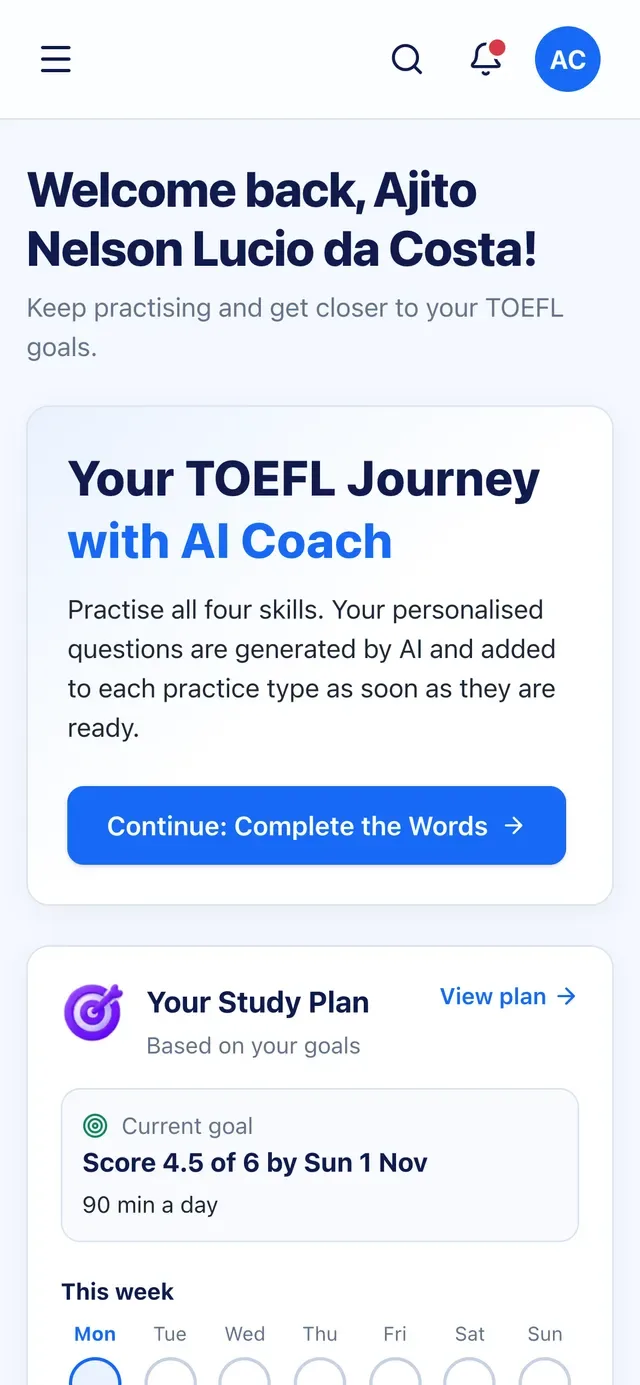
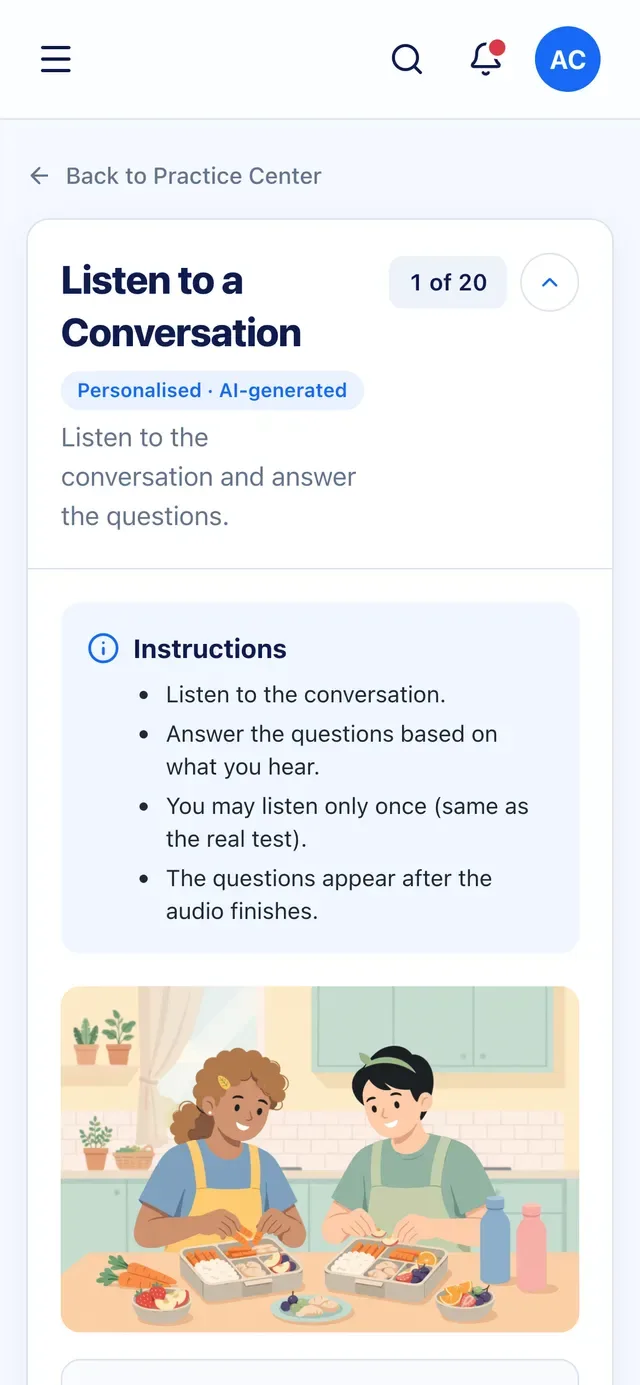
#12. Use it on your phone
Every page works on a phone, including practice with audio and recording.
#13. Practise in VR on Meta Quest
With a Meta Quest headset you can practise 9 of the 12 task types in the VR Study Room: a seated virtual classroom where you use only your hands. It uses the same questions, scoring and progress as the rest of the app, and it continues where you stopped.
Open lafaektoefl.tech/vr in the Quest Browser and sign in with a code from your phone, so you never type a password on the headset. No account yet? Choose Try the demo, no account to try the room with sample questions; leaving the VR area ends the demo. The full guide is in VR Study Room.
All scores in LafaekTOEFL are practice estimates, not official ETS/TOEFL scores. TOEFL is a registered trademark of ETS; this project is not affiliated with ETS.